The Social Robot

The Social Robot

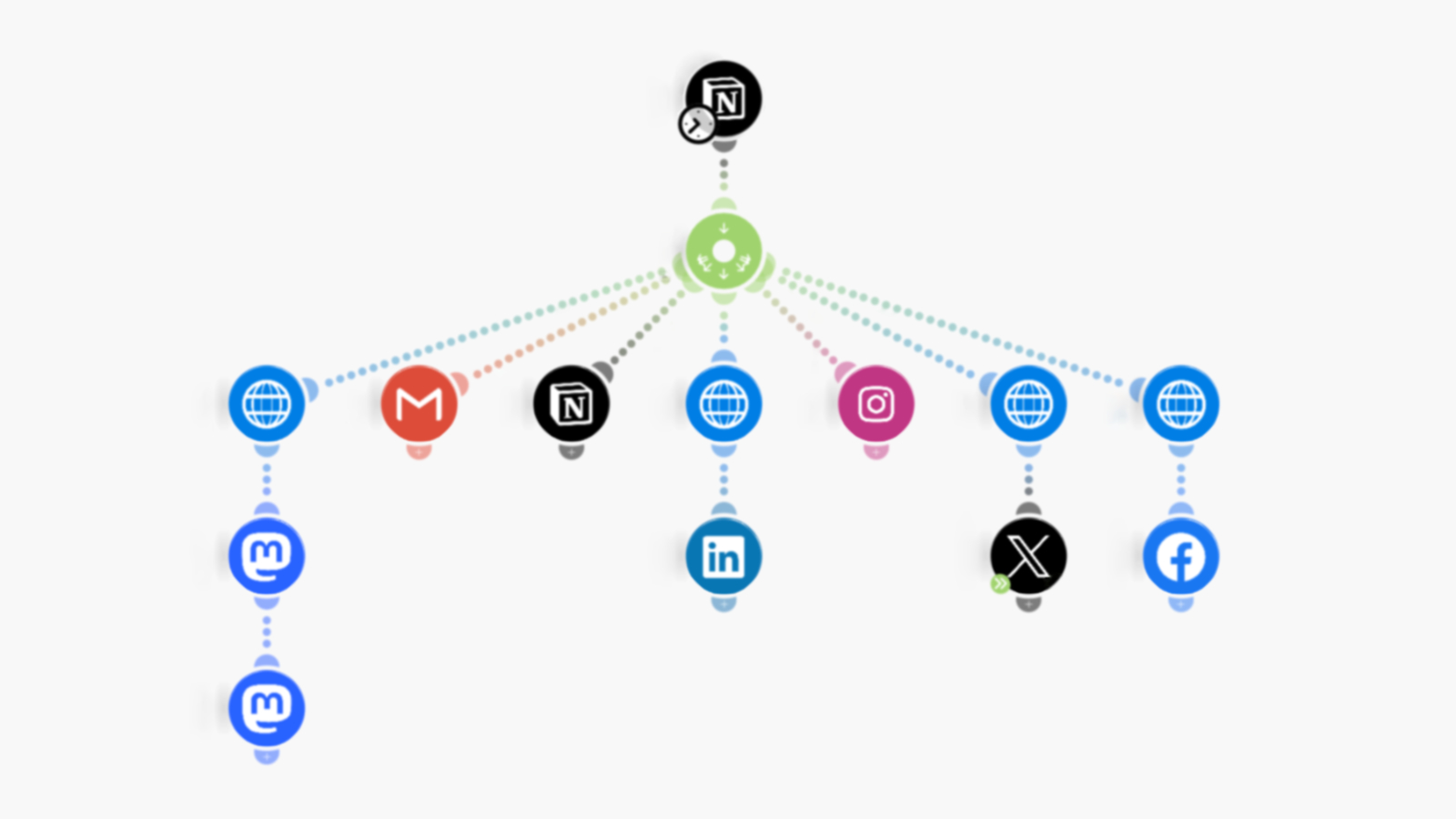
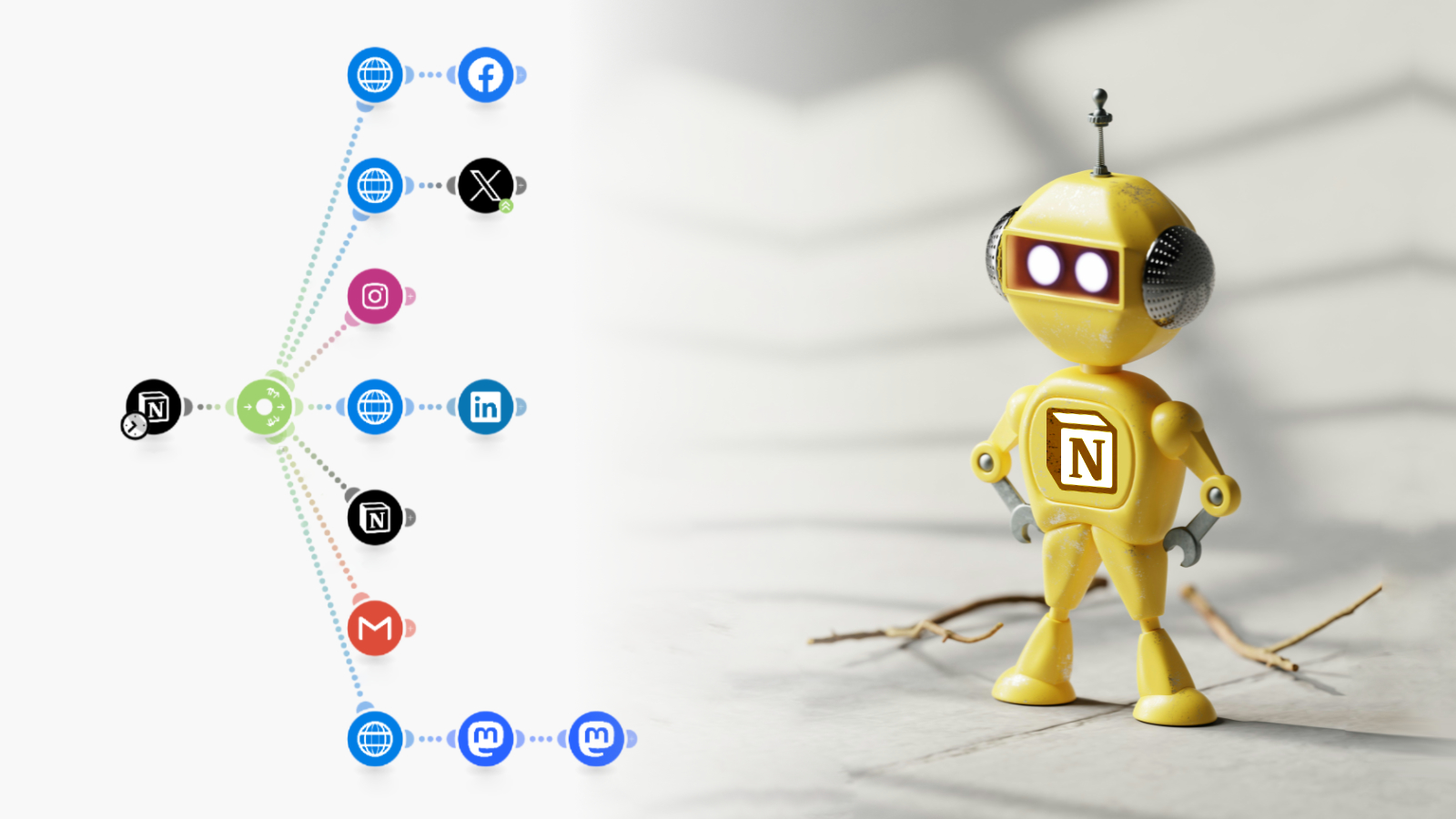
This Automated Social Media Posting system will help you save hundreds of hours with a complete solution that includes an automation that is triggered every amount of hours you decide, it searches a Notion database for not published items, select one of them, publish it to different social media accounts and mark it as published.

You can have a Notion database with any number of publications and everything will work automatically for you, with no effort and by itself.

Promote your blog posts, products, content, photos, website, YouTube videos and anything you can imagine.

Save time and money instantly.
Notion Database

The Social Robot Notion Template

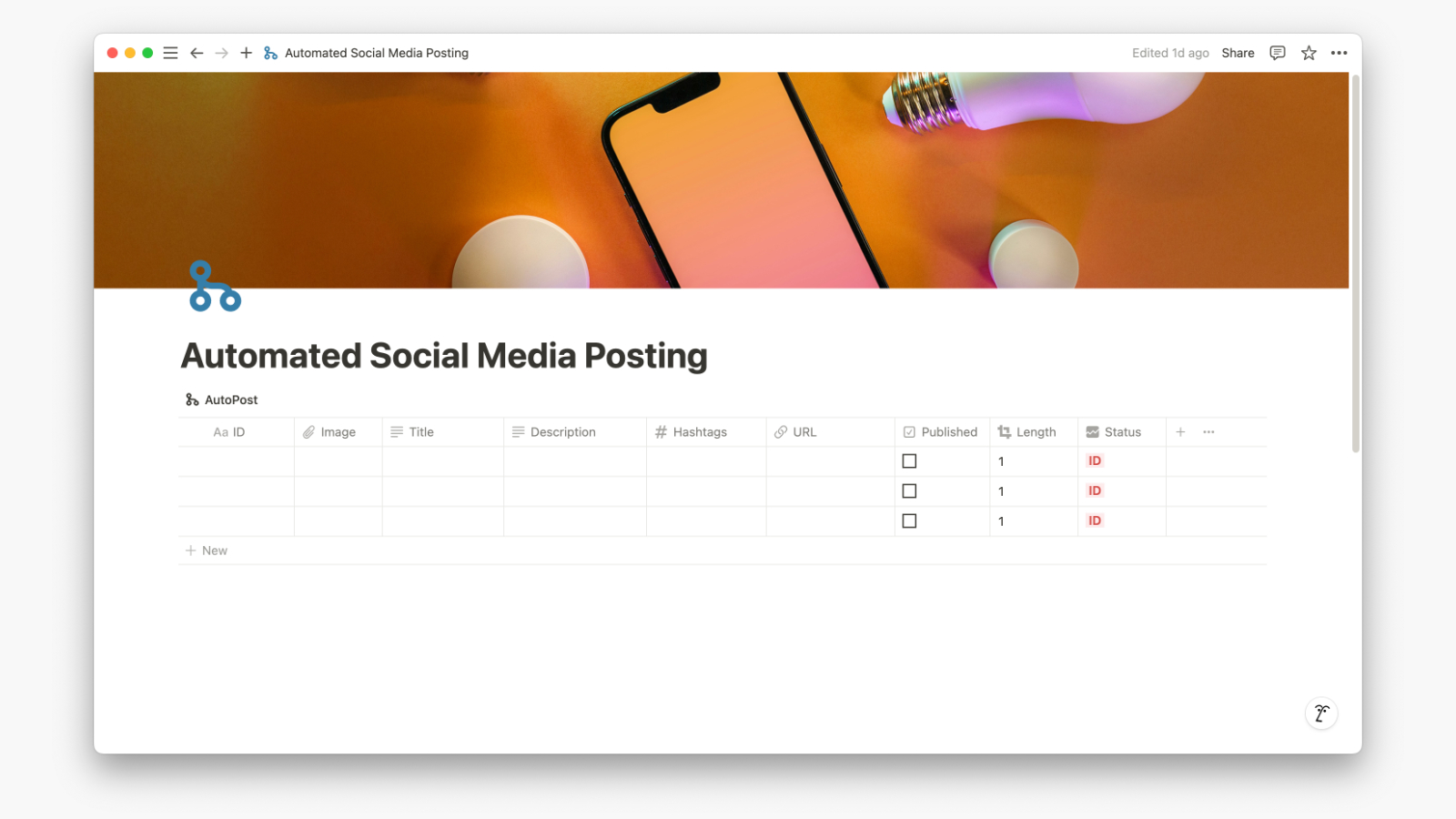
A single database with all your social media post that will be automatically published to the social media accounts using Make.

Notion database properties

ID
A sequential number that can help you sort the items, use it as a reference to each one of the publications and organize post with a proper order.

Image
This is where you upload an image or photography that will be attached to the social media publications.

Title
Used for the main direct title or intro as a text hook for your posts.

Description
A long description for the same post, the system combines both and you can extend the information from the title in the description.

Hashtags
Add hashtags associated to your publication.

URL
The target URL to find more about the post.

Published Indicator
This indicates the already published items from the database.

Length indicator
Useful for X, where there is a limit of characters, this indicator will tell you when you are above that limit.

Status indicator
The status will tell you which information is missing in your publications.

Make Scenario

The Social Robot Make Scenario

A complete and ready to use automation that reads the Notion database and publishes to your social media accounts.

Included Social Media Accounts

– Facebook
– Instagram
– LinkedIn
– Mastodon
– X

The Make scenario has everything ready to use, you will only need to authorize your social media accounts, adjust the settings as you need and done.

Get the Automated Social Media Posting

hassle-free and without monthly payments

Stop paying monthly fees for services that require that you spend time and money. With a one-time payment you get instant access to duplicate the Notion template and download the Make scenario.

Notion to Social

  • Notion Template
  • Make Scenario

99 €

Notion to Social + Setup

  • Notion Template
  • Make Scenario
  • Setup

299 €

What is included?
The Notion template ready to duplicate. (PDF in your order)
The Make Scenario ready to be imported. (ZIP file in your order)
+ Setup: A 60 minutes session. (Link to schedule a session)

+ Setup
It is a 60 minutes video conference Meet in which you share your screen and I guide you step by step for the complete setup. It has to be this way because you need to authorize your social media accounts from your end. That is the reason I am not able to do the complete setup for you.

Integration and setup for Notion and Make

You need 3 things.

1- Create a Notion integration.
2- Add Make to your Notion database.
3- Connect your social accounts to Make.

Notion Integration

You need to create a Notion integration to use it later with Make and here you have the steps to follow.

Go to the my integrations Notion page.

1- Create a new integration

Add a Name
Use a proper name that will help you identify the integration in the future.

Associated workspace
Select the correct workspace. The one you will use to store the Automated Social Media Posting template.

Type
Leave it as Internal

Logo
Upload a logo that will help you identify your integration or use the one in the resources page of the template.
Click Save.

Click: Configure integration settings

2- Capabilities

Content Capabilities
√ Read Content
√ Update Content
√ Insert Content

Comment Capabilities
None

User Capabilities
√ Read user information including email addresses

Internal Integration Secret
Click Show.
Click Copy.
Paste the code in a Notion page to save it, you will need it later in Make.
Go to the bottom.
Click Save.

Make Integration

Follow the steps mentioned in this Make guide for using Make with Notion.

This are the three sections you need from the guide.

– Internal connection (Integration token)
– Add Databases to be visible in Make
– Find the Database ID

* This 3 steps are required.

Make Setup

– Create a new scenario.
– Add a proper name.
– Click the 3 dots at the bottom and select Import Blueprint.
– Select your file (json inside the ZIP) and the complete scenario will be imported and ready for you to configure.

Now you can click each social module to add and authorize your accounts.

For X (Twitter) you will need an extra step, please follow this Make guide.

How it Works

Now that you have everything ready this is the complete scenario and how it works.

1- The frequency.
Imagine that you have 80 items in the database and you want to publish one every 4 hours. You just enter 240 minutes and done.

That will have as a result 14 days of auto publishing to all your accounts without you doing anything.

2- The execution.
The scenario will run every 240 minutes, it will search the database for unpublished items, grab one, publish it to all the accounts and mark it as published.

3- All published
When all the items are marked as published, the scenario sends you an email to uncheck and review the database. You just need to uncheck everything or only the ones you want to enter the next batch.

4- Important
You have to authorize Gmail every week. This is how Make works, they will let you know there is a problem and you can authorize again with 2 clicks.

FAQ

This are the frequently asked questions for the Automated Social Posting System.

Yes. Just keep in mind free accounts have a file size limit of 5mb.

You could, but some social media like x, require a paid plan, I recommend the Core plan to start. Also keep in mind the number of executions included in each plan.

Almost all of them just need an authorization with one click, but you can search the Make documentation to see any of the advanced integrations.

Yes. I can modify and extend the system as needed. Please get in touch in the contact page.

Please get in touch in the contact page.