
Apple Shortcuts Meets Notion

Apple Shortcuts Meets Notion
Imagine everything you could achieve if you could instantly capture ideas, tasks, and projects in Notion with just one command. This Apple Shortcut empowers you to save valuable time that you’d normally spend searching, opening, and manually organizing your notes. Instead of losing crucial minutes each day, you can now focus on what truly matters: your goals, your creativity, and your productivity.

Every time you use this shortcut, you’re choosing simplicity and efficiency. It’s like having a personal assistant that, in seconds, puts everything in the right place. No more distractions, no more interruptions. Just you and your ideas, flowing seamlessly.

And here’s the best part: it works with your voice through Siri. Simply say the command, and Siri will handle the rest, allowing you to add content to Notion without even lifting a finger. Whether you’re on the go, driving, or hands full, your ideas are captured effortlessly. Saving time isn’t just a matter of convenience—it’s a strategic decision. It’s more time to enjoy, to think, to grow. And that’s what this shortcut offers you: the opportunity to be effortlessly more productive every single day.
Apple Shortcuts to Notion Demo

3 Shortcuts included.

1- Shortcut 01 (In Title)
This shortcut will add your content to the title of the page.

2- Shortcut 02 (Review Note)
This shortcut will have a “Review Note” Title and will add your content inside in body of the page.

3- Shortcut 03 (Title and Content)
This shortcut will ask for a Title and for the Content separately.

Use them in as many Notion databases as you need, no limit. For tasks, for notes, for ideas, for shopping, for events, for phone numbers, for… you name it.

Apple Shortcuts and Notion Setup

Notion Setup

Create a New Notion Integration

Go to the Notion Integrations Website.

· Name
Add a proper name to the integration.

· Associated workspace
Select the Notion workspace where your database is located.

· Type
Internal

· Logo
Upload

· Copy secret
Paste it in a Notion page to use it later in the shortcuts.

Add the Integration to your Notion database

1- Open your Notion database.
You must open the database as full page and not the page where the database can be located.

2- Click the 3 dots at the top right.
3- Scroll down to Connections.
4- Click Add Connection.
5- Select the Notion Integration you just created.
If you do not see your integration, reload Notion.

If you need more help, see this Notion guide and scroll down to “Add connections to pages”.

Copy your Database ID
1- Open your Notion database.
You must open the database as full page and not the page where the database can be located.

2- Click the 3 dots at the top right.
3- Click Copy link.
4- Paste the link in Notion.
You will get something like this:

https://www.notion.so/youraccount/78sd67r32kmen734lm55lj2n5k69b01nsba?v=s9r4jw3jj55rfsuh570fbsh345usb332msj4&pvs=4

The ID is the code between youraccount/ and the ? (question mark).

5- Copy the ID
Paste it in a Notion page to use it later in the shortcuts.

Apple Shortcuts Setup

Apple Shortcuts Meets Notion Shortcuts Setup

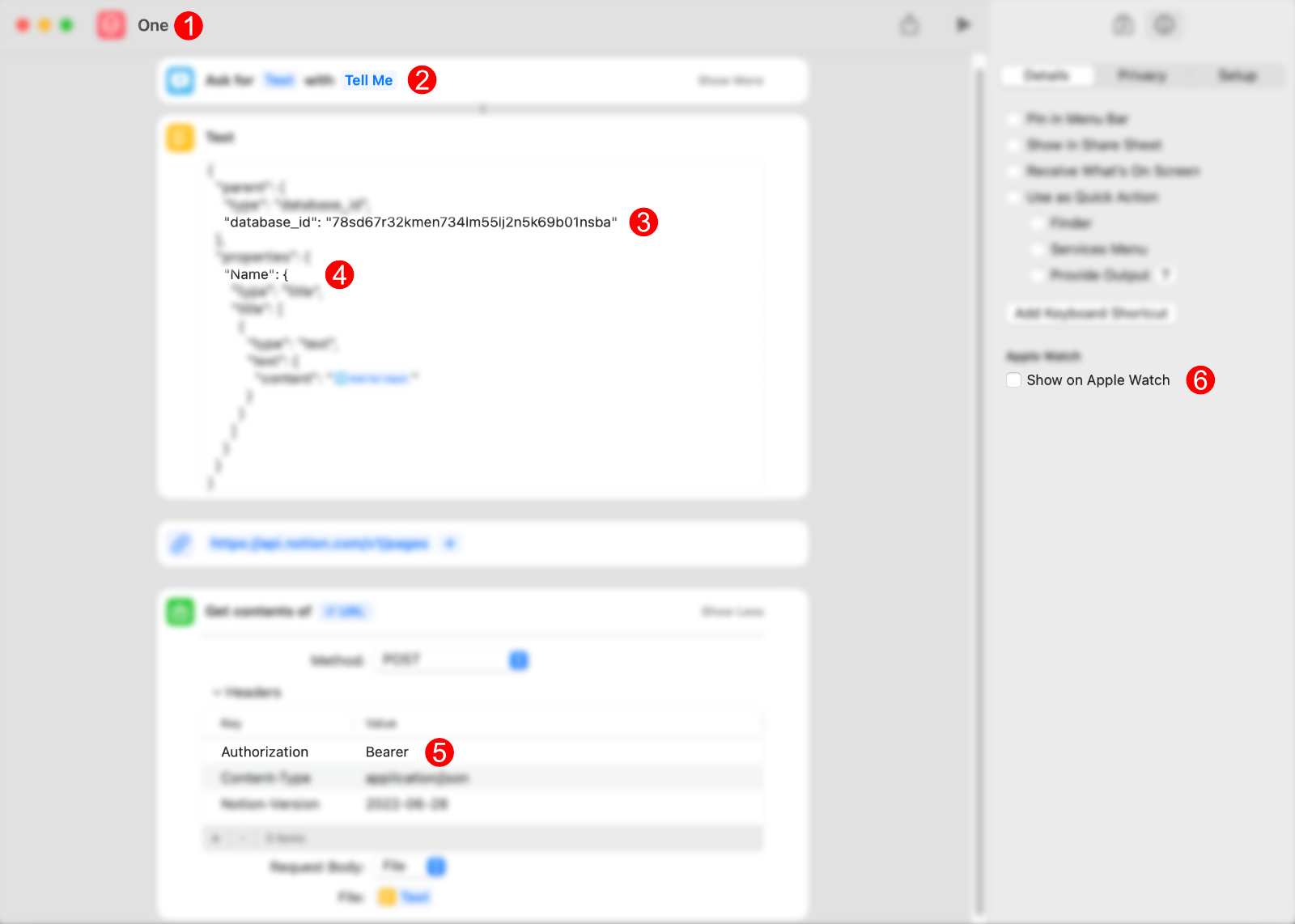
6 simple steps to follow and everything will be ready to start using the shortcuts.

1- Shortcut Name
Add a proper Shortcut Name. When using Siri you execute the Shortcuts by Name, for example if you name a Shortcut “Digest”, you use it by saying Hey Siri: “Digest”.

2- Response
Change “Tell Me” for anything you want, like “Let’s go!”

3- Database ID
Replace with your Database ID.

4- Name
If the default “Name” property in your database is different, you need to add it **exactly** as you have it.

For example, if you changed Name to Title, the result should look like this:
“Title”: {

* Only needed in Shortcut 01.
* For Shortcut 02, change “Review Note” for the title you want to have.

5- Authorization
Edit the Authorization Value, you need your secret code you copied from the Notion integration and the format has to be exactly like this.

“Bearer” + “space” + “Secret”

The result should look like exactly like this.

Bearer ntn_466yyke2514329bbLGM5d5bTN9HtfR567DErfgX4sgR3

6- Apple Watch
If you want to use the shortcut in your Apple Watch, enable this option.